How to Clean Data in Excel: A Practical 8-Step Checklist
Clean Excel data with a practical checklist and a GetSheetAI demo: 2,600 sample orders become 2,500 unique rows, with consistent dates, codes, and numbers.
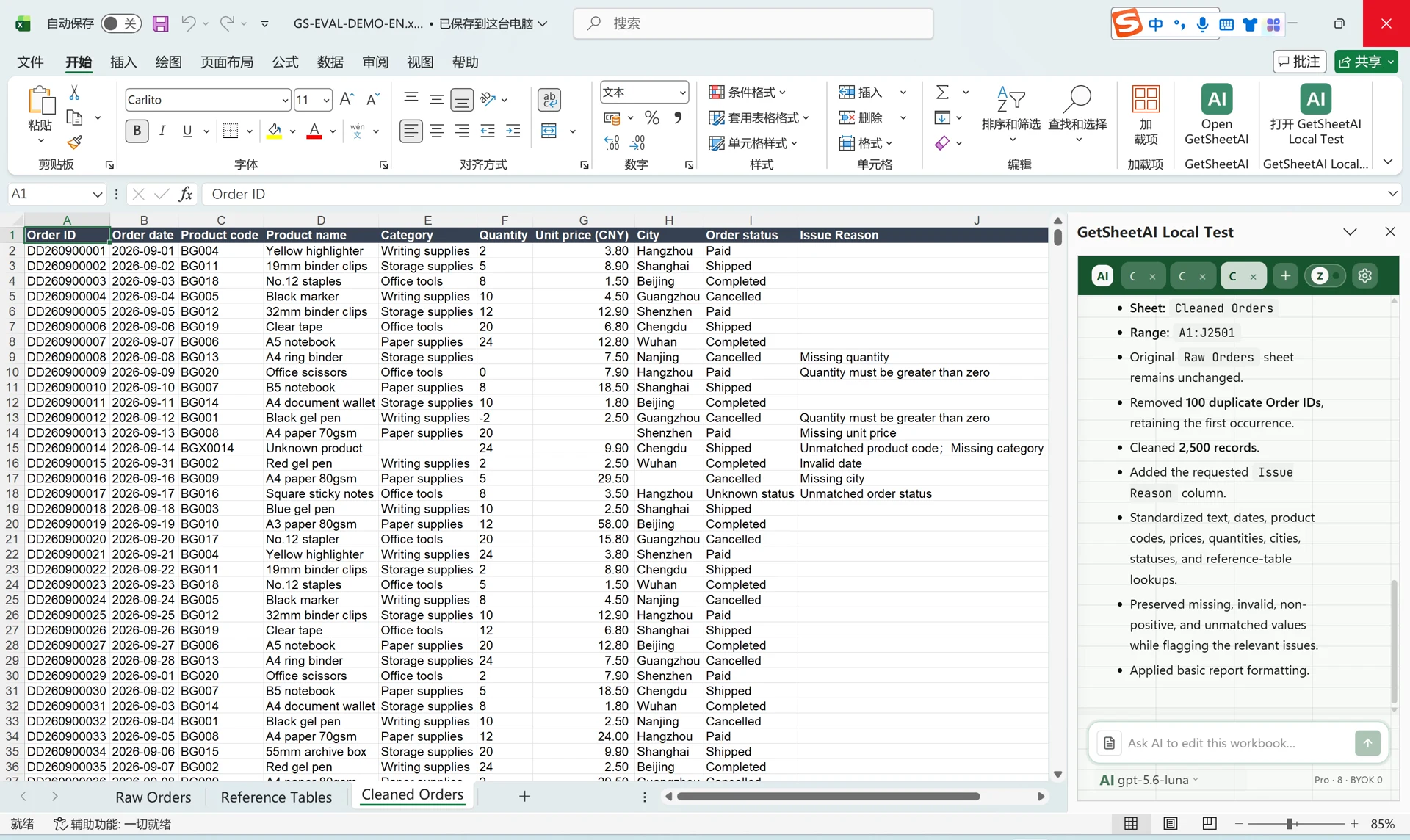
Real screenshots from a local developer demo using simulated data, not customer records. The original app interface is preserved. Short videos include sped-up processing.
▶ Watch the short demo on YouTubeMost spreadsheets don't fail because of complicated math. They fail because the data underneath is messy: a date column with three different formats, invisible trailing spaces that break lookups, duplicated rows from a double export, and a handful of #N/A errors nobody investigated.
This guide gives you a practical, repeatable checklist for cleaning any sheet — first the manual way, then the fast way with an AI assistant that works directly inside Excel.
Watch the demo: 2,600 messy rows, less spreadsheet housekeeping
You open Excel to analyze orders. First, though, there are duplicate records, dates in different formats, and amounts that look like numbers but are stored as text. None of that is the work you opened the file to do.
In our latest GetSheetAI demo, we used a workbook containing 2,600 sample orders. The cleaned output contains 2,500 unique rows, with dates, product codes, and numeric fields standardized. Results go onto a new sheet; the original stays intact.
Watch the Excel data-cleaning demo on YouTube.
This is a developer demonstration using sample data, not a customer dataset. The recording is sped up: the video's length is not the task's execution time.
What changed in the workbook?
| Before | After |
|---|---|
| 2,600 sample order rows, including repeats | 2,500 unique rows after cleanup |
| Mixed date formats | Consistent date formatting |
| Inconsistent product-code spacing and case | Standardized codes, without replacing them with product names |
| Numeric fields needing cleanup | Consistent numeric fields for analysis |
| A source sheet you want to keep | A separate output sheet, with the original preserved |
The useful part is not another explanation of which menu to click. It is having the repetitive cleanup carried out inside the workbook.
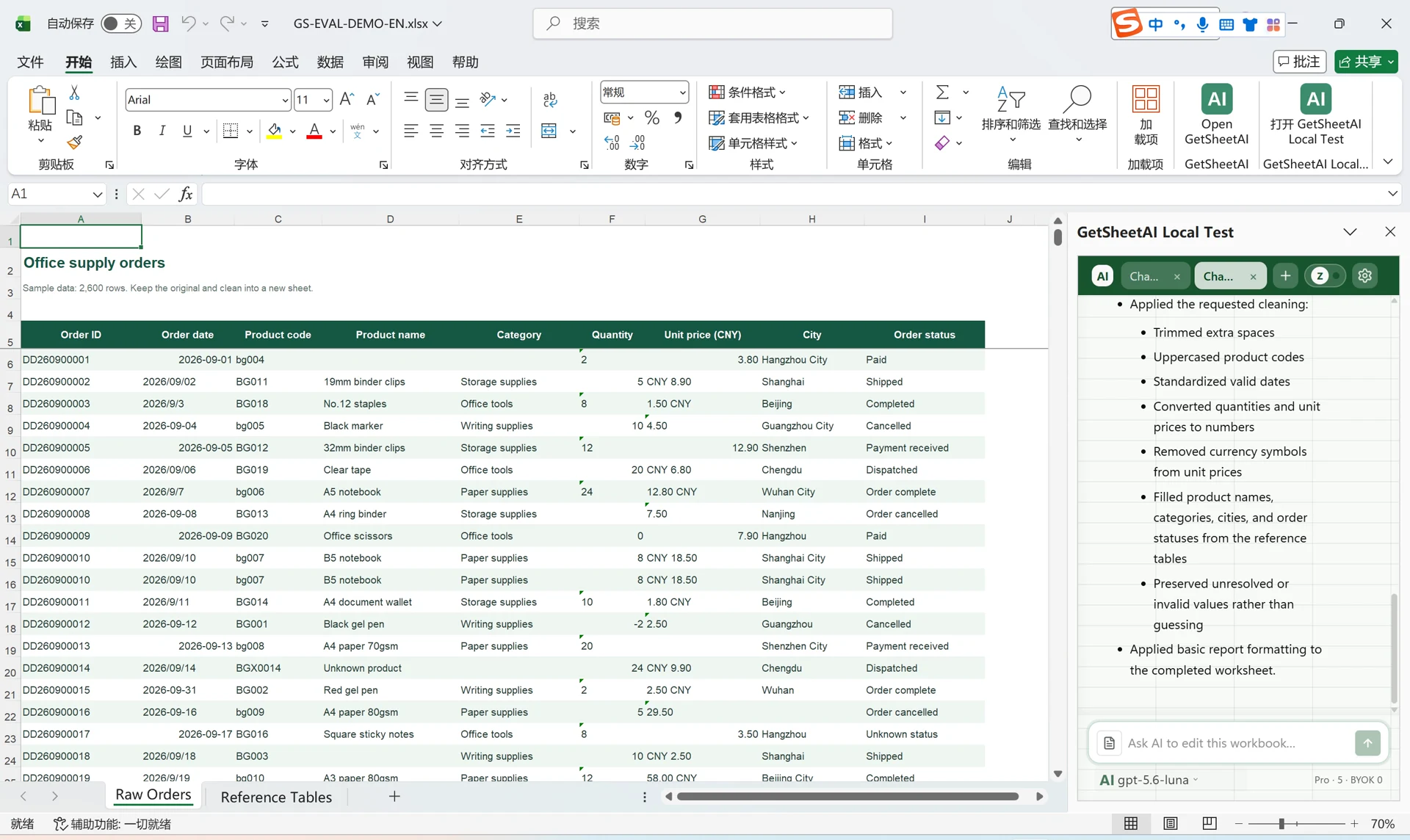
Try a plain-English cleanup request
Start with the rules you would give a colleague. For a similar order sheet, you can adapt this request:
Clean this order sheet: remove duplicate records, standardize dates and numeric fields, and trim spaces from product codes and make them uppercase. Keep the original codes, not product names. Put the cleaned data on a new sheet and leave the original unchanged.
This is a suggested request for a similar workbook, not a verbatim transcript of the demo. If your sheet contains multiple legitimate lines per order, say which columns define a duplicate; a repeated order number alone may not mean a repeated record.
GetSheetAI is AI for Excel and Google Sheets; this particular recording shows the Excel workflow. Get the Excel add-in to try your own cleanup rules.
Tell GetSheetAI your cleanup rules. Let it handle the repetitive work.
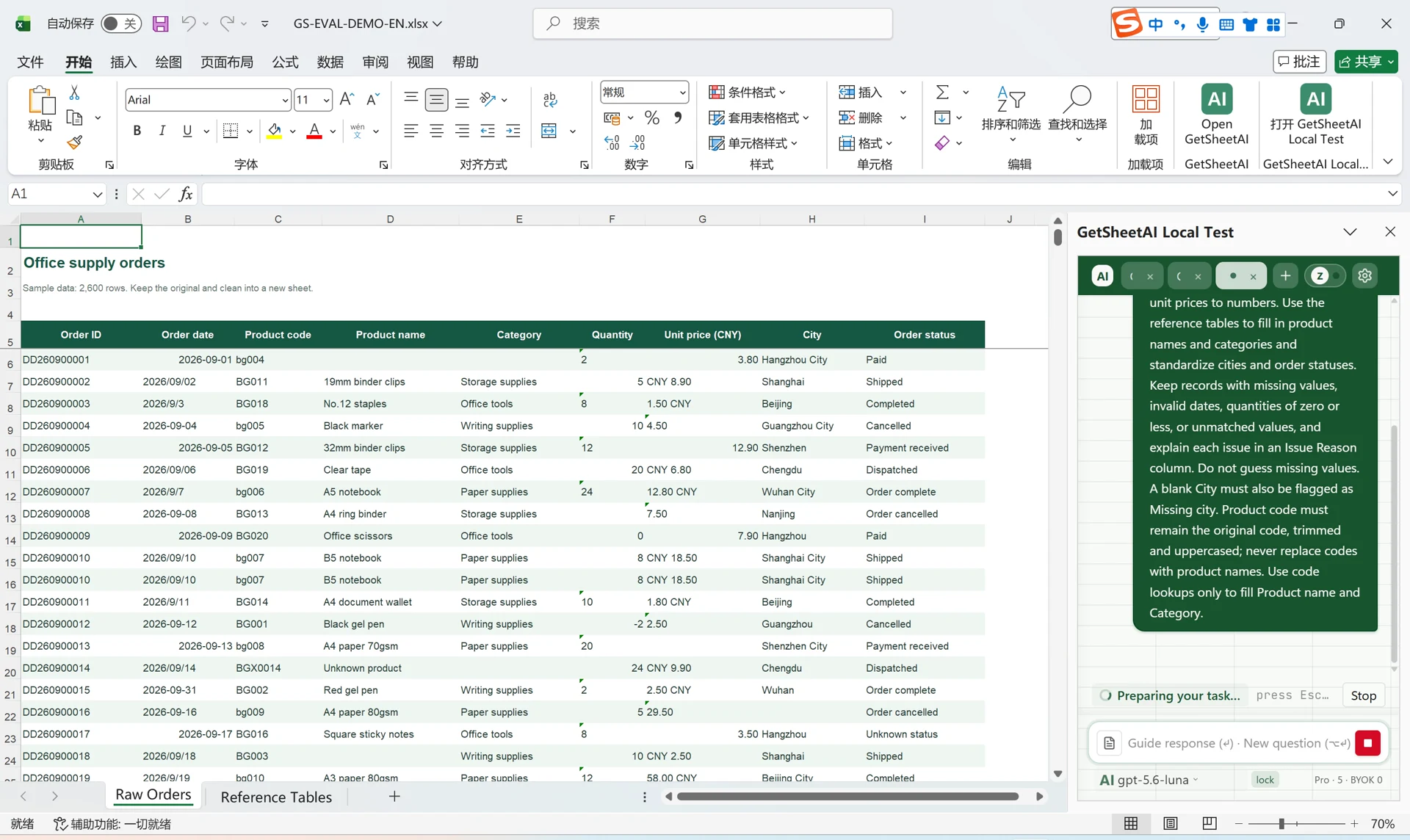
Quick answer
To clean data in Excel safely: preserve a raw copy, make the range tabular, remove invisible characters, standardize dates and numbers, classify missing values, review duplicates before deleting them, repair formula errors, and reconcile row counts and totals. Use Power Query when the same cleanup repeats; use an AI add-in when the layout or rules change and you still need a verified write-back.
Before cleaning: define a measurable baseline
Record a few numbers before editing so “cleaner” does not accidentally mean “different”:
- total data rows and columns;
- sum of one or two critical numeric fields;
- count of blanks, duplicate keys, and formula errors;
- earliest and latest valid dates;
- a copy of the original data on a
RAWsheet or separate file.
After cleaning, these values should either match or have an explained reconciliation.
1. Make a copy before you touch anything
Cleaning is destructive by definition. Before you change a single cell, duplicate the sheet (right-click the tab → Move or Copy → check Create a copy) or save a versioned file.
If you use AI for Excel, this step happens automatically: the add-in snapshots your workbook before every write, so any change can be rolled back with one click.
2. Strip invisible characters
Trailing spaces and non-breaking spaces are the most common reason a VLOOKUP or XLOOKUP "can't find" a value that is clearly there. Fix them with:
=TRIM(CLEAN(A2))
TRIM removes leading/trailing/repeated spaces; CLEAN removes non-printing characters. Data imported from web pages often contains the non-breaking space CHAR(160), which TRIM alone won't catch:
=TRIM(SUBSTITUTE(A2, CHAR(160), " "))
3. Normalize dates into one format
A column where 2026-03-05, 3/5/26, and 05.03.2026 coexist will sort wrongly and break every pivot table. The reliable manual fix is Data → Text to Columns → Date, which forces Excel to re-parse each cell as a real date. Then apply one number format to the whole column.
Watch for dates stored as text: they align left by default and ISNUMBER(A2) returns FALSE.
4. Convert numbers stored as text
Green corner triangles usually mean numbers stored as text — they look fine but sum to zero. Quick fixes:
- Multiply by 1 in a helper column:
=A2*1 - Or use
=VALUE(TRIM(A2)) - Or select the column and use the warning dropdown → Convert to Number
5. Handle missing values deliberately
Don't just delete rows with blanks — first understand why they're blank. A missing cost might be a data-entry gap (fill it from the source), a genuine zero (enter 0), or unknown (mark it explicitly). We cover strategies in detail in How to Find and Fill Missing Values in Excel.
To find blanks fast: select the range, press F5 → Special → Blanks.
6. Remove duplicates — but check first
Data → Remove Duplicates is fast and irreversible, and it keeps the first occurrence without telling you which rows it deleted. Count duplicates first with:
=COUNTIFS($A$2:$A$1000, A2, $B$2:$B$1000, B2)
Any row where this returns more than 1 has duplicates. Our guide to finding and removing duplicates safely walks through the full workflow.
7. Repair formula errors instead of hiding them
#N/A, #DIV/0!, and #REF! are diagnostic information. Wrapping everything in IFERROR(...,"") hides real problems. Use targeted handling — see IFERROR + XLOOKUP: Building Error-Proof Excel Formulas for patterns that fail loudly when they should.
8. Verify the cleaned result
After cleaning, sanity-check the sheet:
- Row count: did you lose more rows than the duplicates you removed?
- Totals: do key columns still sum to plausible values?
- Spot checks: pick five random rows and compare against the source.
When Power Query is the better answer
If the same export arrives every week, build the cleanup once in Power Query. Each transformation—change type, trim text, split a column, remove duplicates—is stored as an applied step and reruns when the source refreshes.
A sensible division of work is:
| Scenario | Recommended approach |
|---|---|
| Same source and same rules every refresh | Power Query |
| One-off cleanup with changing columns | AI Excel add-in |
| Small correction you fully understand | Formula or built-in Excel command |
| Regulated repeatable process | Governed query/script plus review |
Power Query is not automatically safer: removing duplicates or replacing errors can still discard important records. Keep the raw source and validate the refresh output.
Doing all of this with one instruction
The checklist above is maybe 30–60 minutes of careful work per sheet. This is exactly the kind of job an AI assistant that operates inside Excel does well, because it can read the actual cells, apply fixes, and write results back — instead of just telling you what to do.
With AI for Excel installed, you open the sidebar and type:
"Clean this sheet: trim spaces, convert text numbers, unify the date column to YYYY-MM-DD, flag duplicate rows, and list anything you couldn't fix."
The assistant reads the range, applies the changes, and reports what it did — and because every write is preceded by an automatic backup and followed by a verification pass (it reads back what it wrote), you can accept the result or roll it back entirely.
You can try it free on your own workbook, or see pricing for the paid tiers.
After cleaning: reconcile the amounts
Once customer IDs and amounts are consistent, compare the transaction sources. Our invoice and payment reconciliation case turns 4,000 rows into a filterable, formula-based table for 110 customers without changing the source values.
Official Excel references
- Microsoft: Top ten ways to clean your data
- Microsoft: Filter for unique values or remove duplicate values
- Microsoft: Keep or remove duplicate rows with Power Query
FAQ
How do I clean data in Excel without formulas?
Use built-in tools: Text to Columns for dates and numbers, Find & Replace for stray characters, Remove Duplicates for repeated rows, and Go To Special → Blanks for missing values. Or describe the cleanup in plain language to an Excel AI add-in and let it apply the steps for you.
What is the fastest way to clean a large Excel sheet?
Work column-by-column, not cell-by-cell: fix one column's type and format everywhere, then move on. For sheets with tens of thousands of rows, an add-in that processes the range programmatically — like AI for Excel — avoids both manual errors and copy-paste fatigue.
Is it safe to let AI modify my spreadsheet?
It is if the tool has guardrails. Look for three things: an automatic backup before changes, a log of what was changed, and one-click rollback. AI for Excel does all three by default.